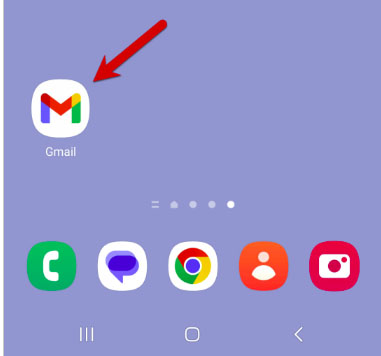
Step 1 - Open the Gmail app
Open the Gmail app on your Android device.
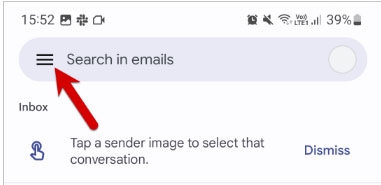
Step 2 - Go to Settings
Click the menu in the top left corner to open Settings.
Tap Settings at the bottom of the menu that opens
Step 3 - Click Add account
Click Add account to start setup.

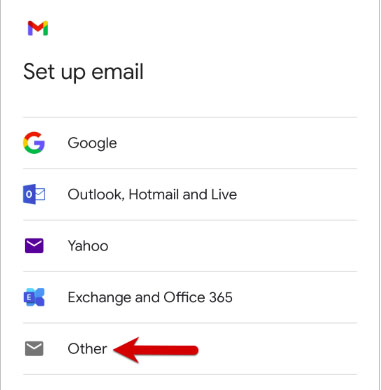
Step 4 - Click Other
Select Other as the account you want to set up.
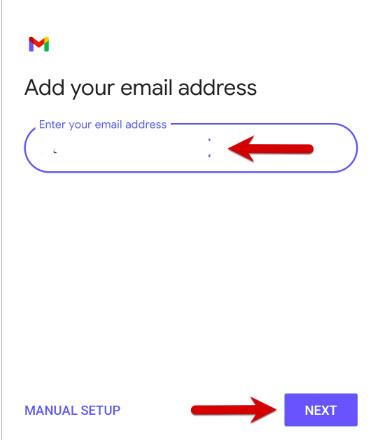
Step 5 - Enter your email address
Type in the email address you want to set up.
Click Next
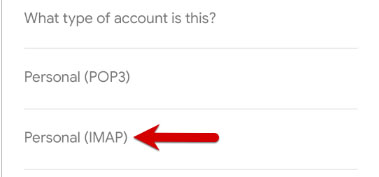
Step 6 - Select IMAP
Select IMAP as the account type.
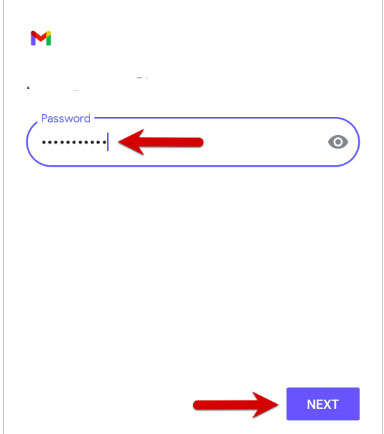
Step 7 - Enter your password
Type in your email password, the one you use to log in to Webmail.
Click Next
Step 8 – don’t change IMAP incoming server
Click Next.
Step 9 – don’t change outgoing server
Click Next.
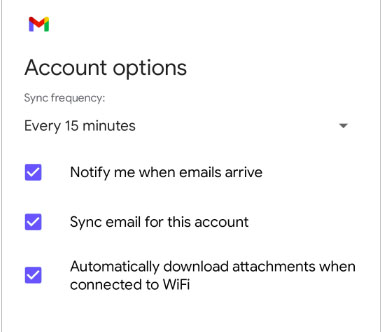
Step 10 - Select account options
Here you set how often Gmail should look for new emails, when you get notifications and more. Uncheck any options you don't want and click Next to continue.
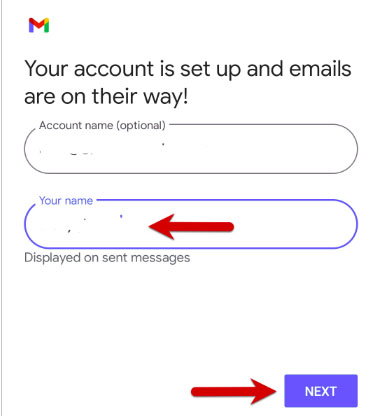
Step 11 - Done!
Your account is now set up and ready to go!